
Using Justin in Slack
How to wake Justin up, what it replies to, and when it asks before acting.
Justin AI is an AI coworker that works inside Slack: ask it in plain language and it reads the thread, reaches into the tools you have connected, does the work, and posts the result back where you asked. It closes the gap between asking a question and getting the answer out of whichever system happens to hold it. The same assistant also runs on the web and in Lark, connected to over 3,000 tools. In Slack it only answers when it is addressed — here is every way to reach it, and what comes back when you do.
1. Add Justin to Slack
Sign up at app.getjustin.ai, then open app.getjustin.ai/slack/connect.
Pick your workspace and review what Justin is asking for on Slack’s own authorization screen.
Approve it. Whether an admin has to sign off first depends on your workspace settings.
Then invite Justin to a channel, or just open a direct message with it.
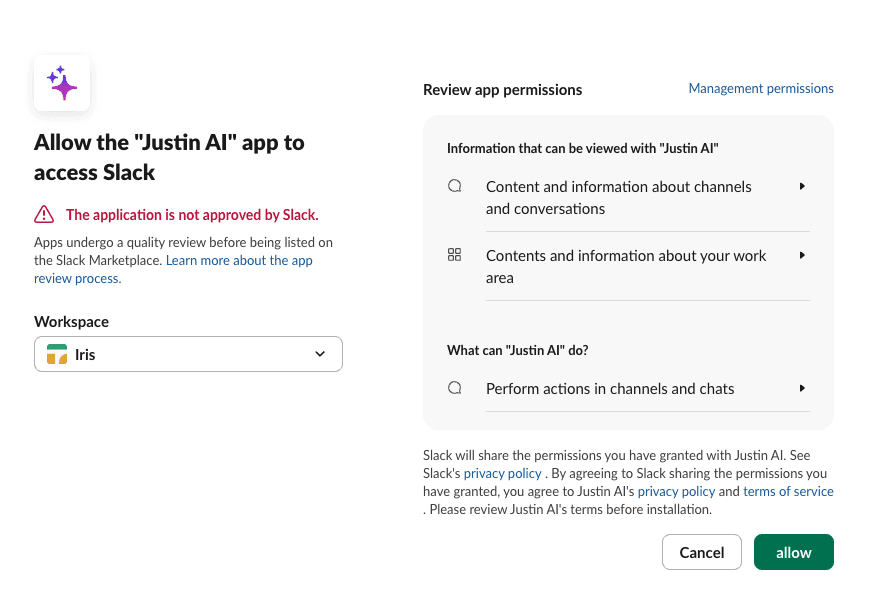
Slack shows exactly what the app is asking for before you approve.
2. Ways to reach it
Open a direct message and type. No mention needed, and follow-ups keep the earlier context.
@-mention it in any channel it has been added to.
Reply in a thread it is already answering in — no need to mention it again.
Reply under a message it sent you, such as an automation report.
Share a file or an image with your question attached to the same message.
Invite it somewhere new with /invite @Justin AI.
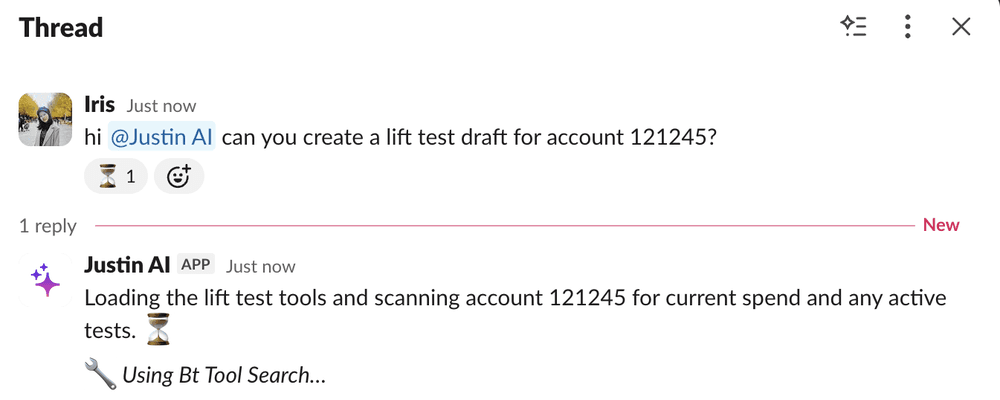
@-mention it and it reacts to your message straight away, then works in a thread.
3. What it ignores
Ordinary conversation between colleagues that it was not addressed in.
@channel and @here announcements.
Anything in private channels it has not been invited to.
4. What a reply looks like
It opens a thread on your message, so a long answer never floods the channel.
An ⏳ reaction goes on your message while it works, and comes off when it is done.
The reply starts as Thinking… and streams in, with a status line naming the step it is on.
Anything it builds is linked at the end of the reply.
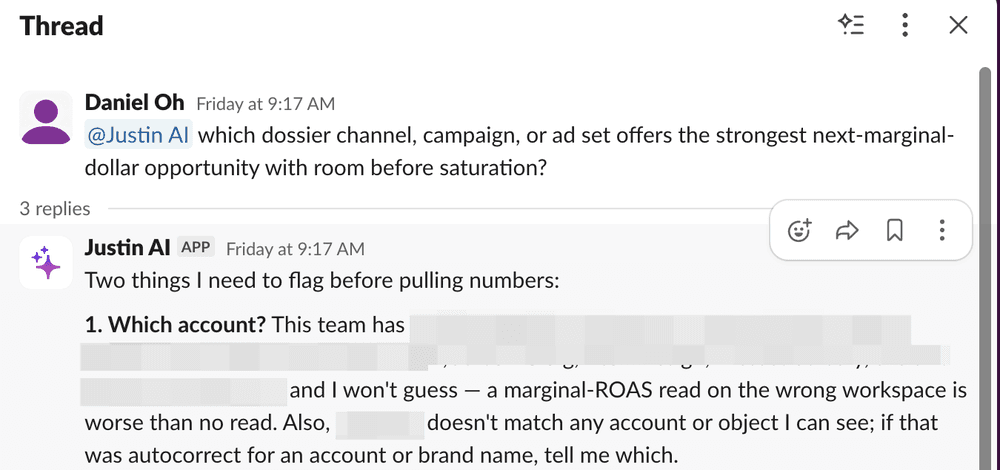
It answers in the thread, and says plainly when it cannot do something.
5. When it asks first
Reading is free. Anything with real-world impact — sending a message or email, writing to a connected system — stops and asks in the channel.
You can approve just that action, or approve that kind of action from then on.
Every approval is recorded with who gave it and when.
Walk away and come back: the card still works, and the job resumes from where it paused.
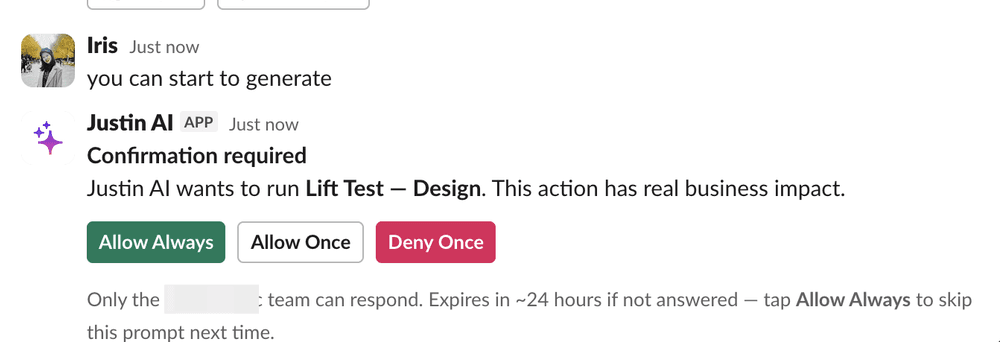
Anything with real business impact stops here and waits for a person to approve it.
6. No slash commands
Justin registers no Slack slash commands. There is no /justin to learn.
One typed prefix is understood inside an ordinary message: \ultra turns on deeper reasoning for the rest of the conversation.
\ultra off turns it back off. It raises capability only — it grants no extra permissions.
7. About AI-generated output
Justin uses large language models to produce its answers, summaries and drafts. AI output can be wrong, incomplete or misleading while sounding confident — check anything consequential before you act on it. Anything that changes data in a connected tool waits for a human approval in the channel first, and every approval is recorded with who gave it and when.